The Work Orders tab is home base: every vehicle, every job, color-coded by status. Here’s how to create, organize, and manage work orders.
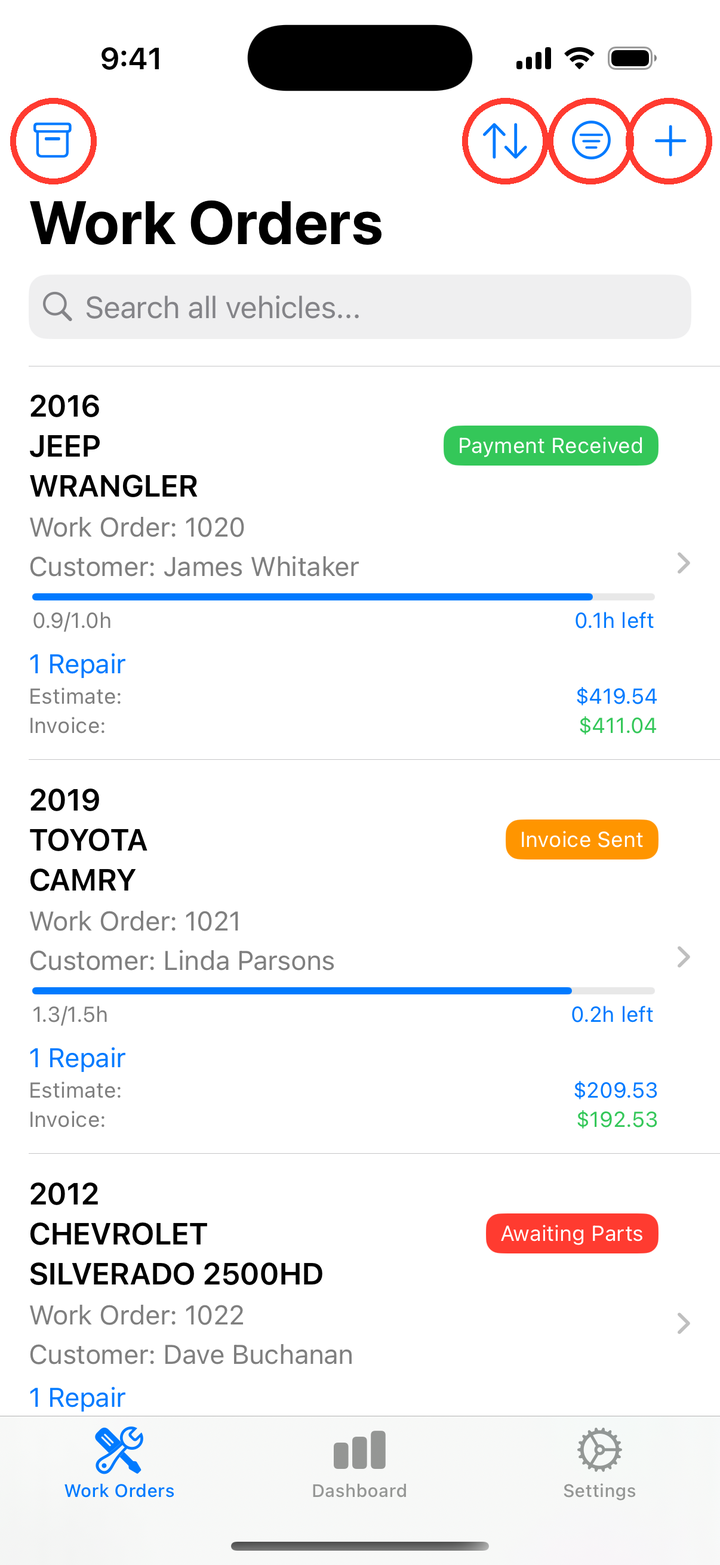
Creating a Work Order
- Tap the + button (or press ⌘N on iPad with a keyboard)
- Enter customer information — name, phone, email
- Enter vehicle information — year, make, model, VIN, license plate, mileage
- Tap Save
VIN Scanning
Tap the camera icon next to the VIN field and aim at the VIN — Side Wrench reads barcodes and the printed VIN text. A valid VIN is decoded automatically into year, make, model, trim, and engine. If the lookup fails (bad connection, unusual vehicle), you can always enter details manually — a failed lookup never blocks saving.
Work Order Status
Each work order moves through five stages. Update the status as the job progresses — tap the status badge on the work order and pick the new stage.
| Status | Color | Meaning |
|---|---|---|
| Estimate | 🟣 Purple | Waiting for customer approval |
| In Progress | 🔵 Blue | Work actively being done |
| Awaiting Parts | 🔴 Red | Waiting on parts |
| Invoice Sent | 🟠 Orange | Invoice delivered |
| Payment Received | 🟢 Green | Complete and paid |
Two statuses do a little extra work for you:
- Setting In Progress stamps the vehicle’s date-in automatically (if not already set).
- Setting Payment Received stamps the date-out — and if the work order still has a balance due, Side Wrench offers to record the payment right then so your books stay accurate.
Search, Sort, and Filter
Search
Pull down on the list to search by customer, vehicle, or work order. On iPad with a keyboard, press ⌘F.
Sort
Tap the sort button (up/down arrows) to order the list by:
- Work order number (low → high or high → low)
- Status (Estimate → Paid or Paid → Estimate)
- Number of repairs
- Cost
Filter
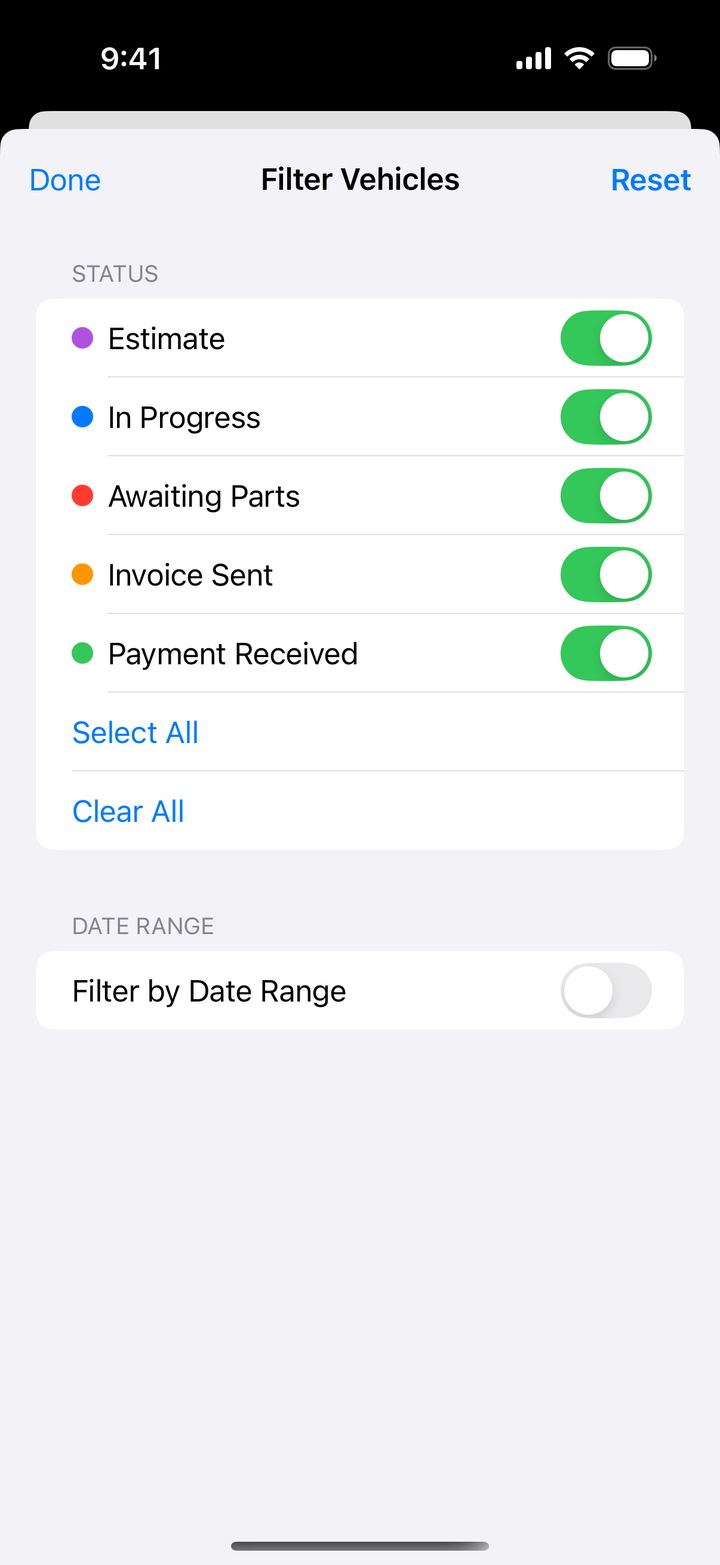
Tap the filter button to open the filter panel:
- Status — show only the statuses you care about (e.g., just “In Progress” and “Awaiting Parts”)
- Date range — show only vehicles checked in between two dates
A red dot on the filter icon reminds you a filter is active. Tap Reset to clear it.
Quick Actions
Swipe a work order row: swipe right for Edit, swipe left for Archive and Delete.
Long-press a row for the full menu: Edit, Archive/Unarchive, Delete — and on iPad, Open in New Window.
Archiving
When a job is done and paid, archive it to keep your active list clean:
- Archive: swipe left → Archive, or long-press → Archive
- View archived: tap the archive box button in the top-left of the Work Orders list
- Restore: long-press an archived work order → Unarchive
Archived work orders keep all their data and still count in your financial reports. Delete, by contrast, is permanent — the work order and everything on it is gone for good.
Side Wrench on iPad
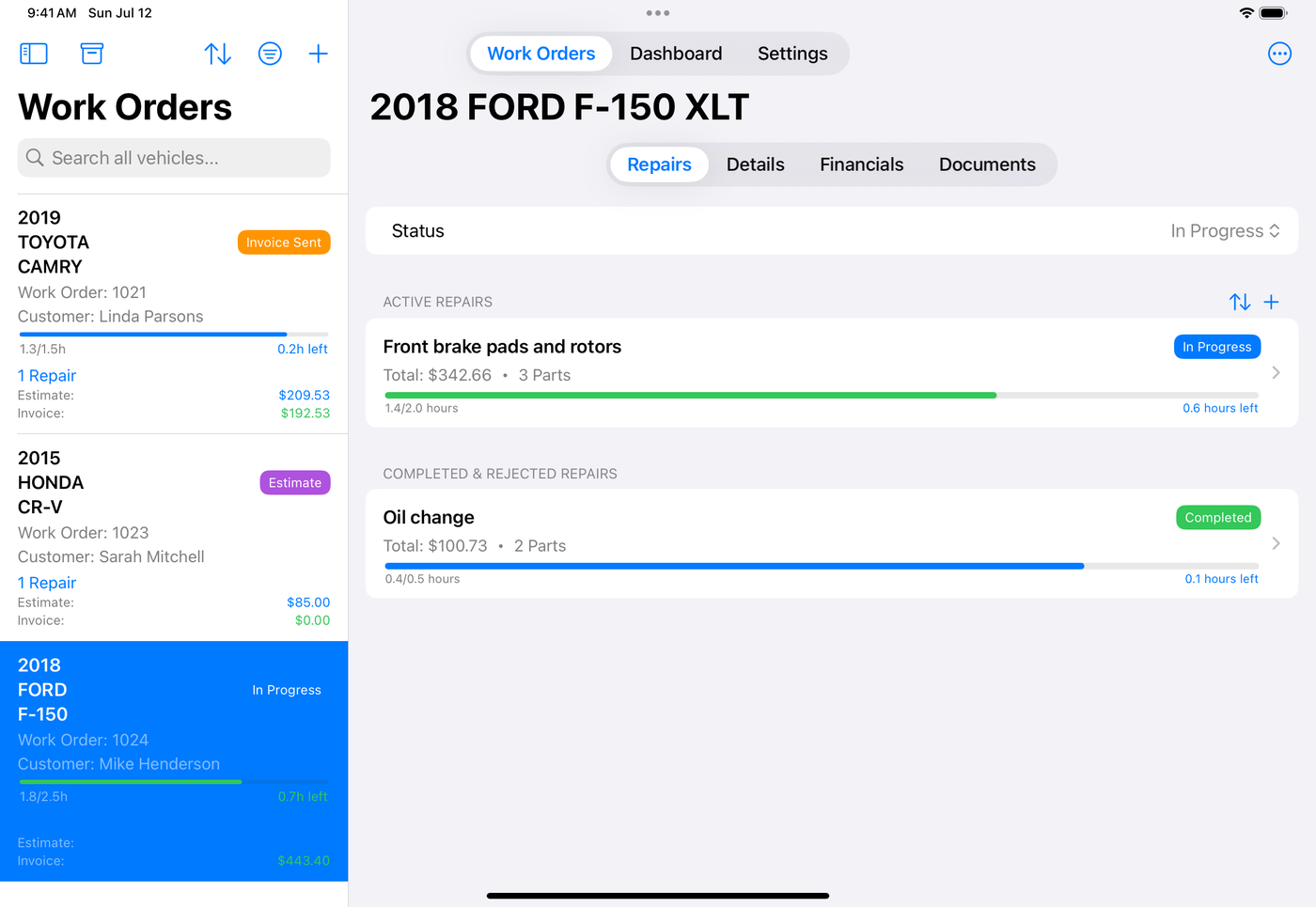
- Split view — the work order list stays on the left while details show on the right
- Open in New Window — long-press any work order to open it in its own window; keep two jobs side by side
- Picks up where you left off — the app restores your selected tab and work order after a restart
Tips
- Update status promptly — the list becomes a live job board for your shop
- Archive completed jobs — active list stays focused, history stays intact
- Enter customer names consistently — makes search and top-customer reports better
- Add notes liberally — future you will thank present you