Side Wrench includes a built-in labor timer that follows you everywhere — in the app, on your Lock Screen, and in the Dynamic Island — so billable time never slips away.
Starting the Timer
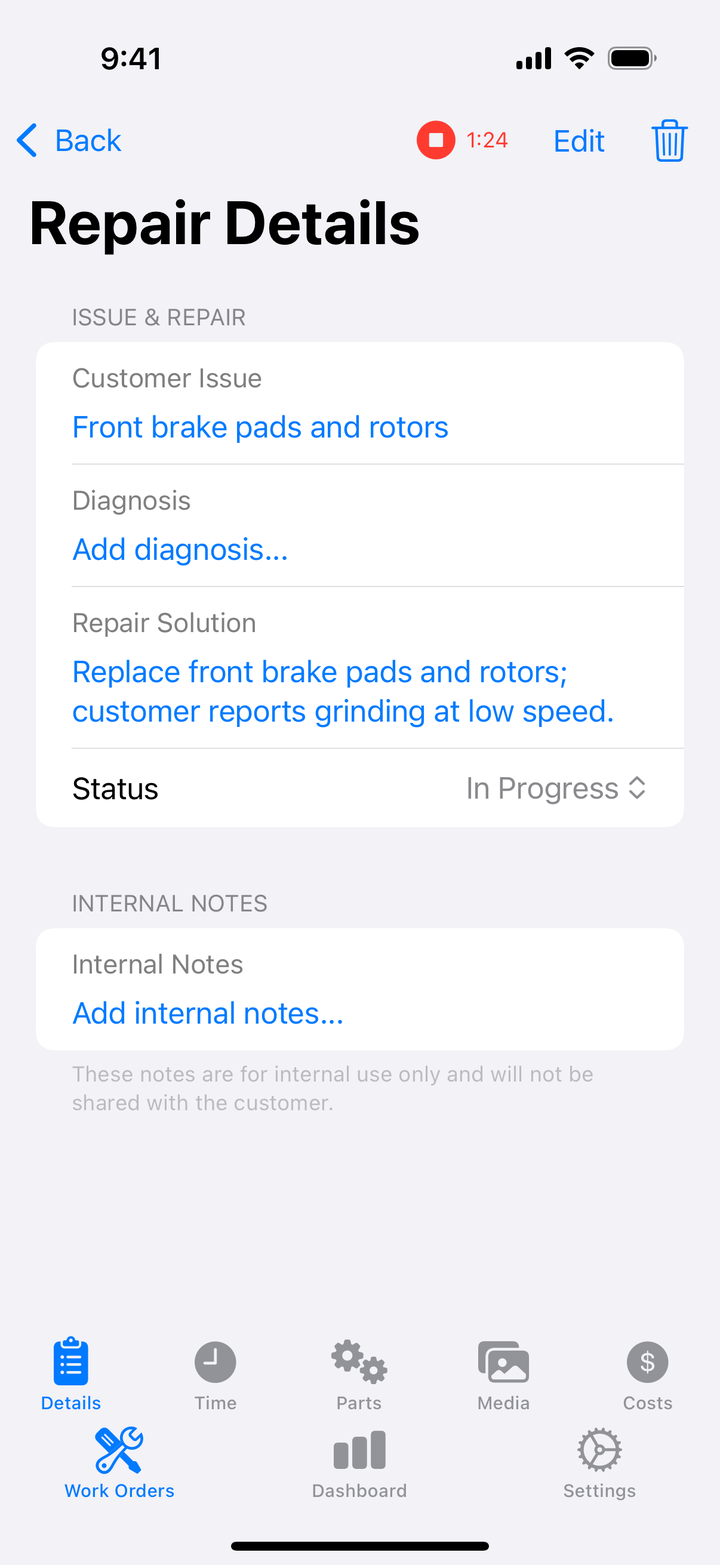
- Open a work order, then open (or create) a repair
- Tap Start Timer
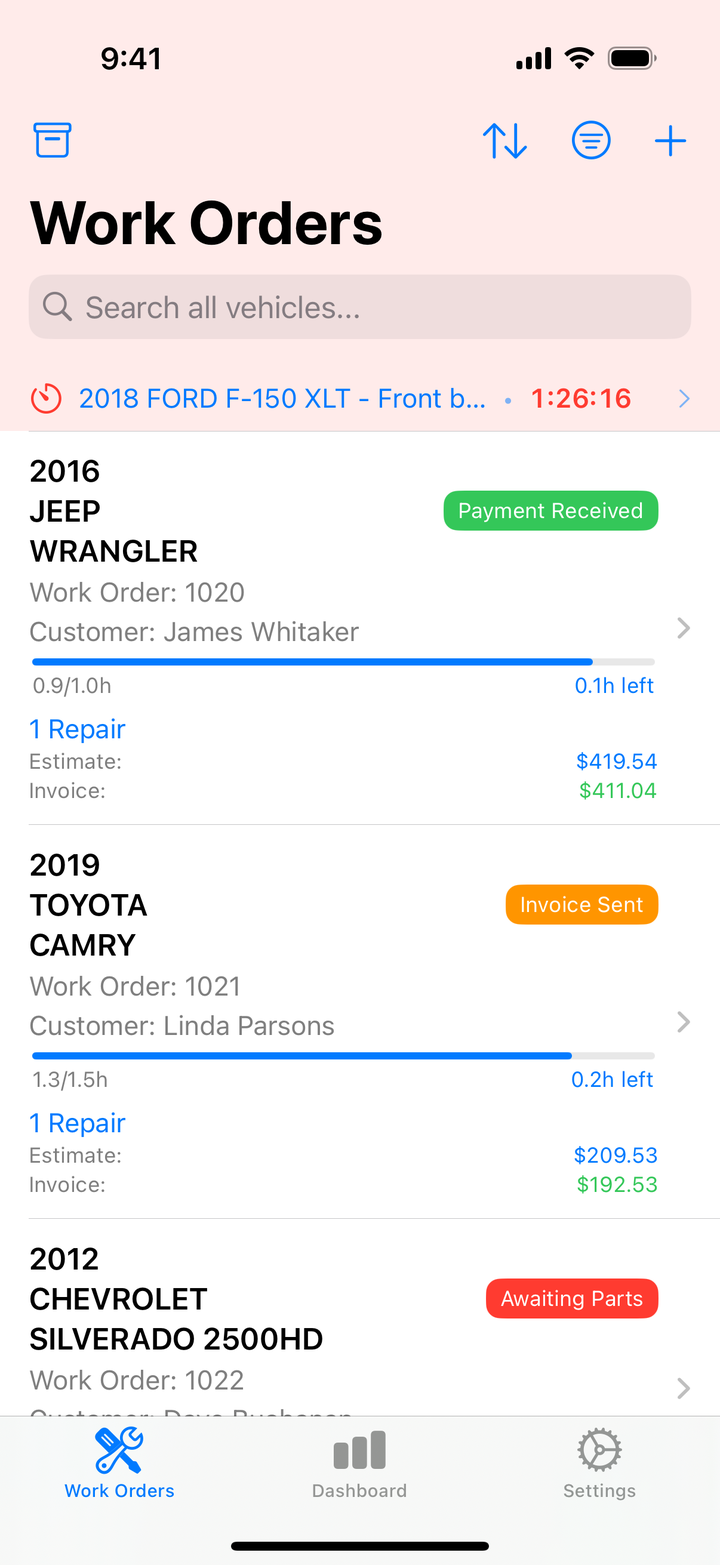
While a timer runs you’ll see:
- A timer banner at the top of the Work Orders list showing the vehicle, repair, and a live count — tap it to jump straight to that repair
- A Live Activity on your Lock Screen (iOS 16.1+)
- The timer in the Dynamic Island (iPhone 14 Pro and later)
- A badge on the app icon showing how many timers are running
Lock Screen & Dynamic Island
The Live Activity shows the elapsed time, the repair, and the vehicle — no unlocking needed. On iPhone 14 Pro and later, a compact timer lives in the Dynamic Island while you use other apps; tap it to expand, or tap through to return to Side Wrench.
Enabling Live Activities
- Open iPhone Settings → Side Wrench
- Turn on Live Activities
Hourly Reminders
Forgot a timer? Side Wrench sends a “Timer Still Running” notification every hour with the vehicle and repair name, so a lunch break doesn’t turn into six billed hours. Allow notifications when the app asks to enable this.
Stopping the Timer
Open the repair and tap Stop Timer — the elapsed time is saved to the repair’s actual hours. You can also stop from the Lock Screen Live Activity.
Pausing and Resuming
Need to switch jobs or take a break? Stop the timer — the time is banked. When you start the timer on the same repair later, the new time adds to the existing actual hours, and the display shows your total accumulated time.
Manual Time Entry
Prefer not to use the timer? Tap the actual hours field on any repair and type the time (e.g., 2.5 for 2½ hours).
Estimated vs. Actual
Every repair shows what you quoted next to what you actually spent. Over time this is gold: if brake jobs always run 30 minutes over your estimate, your next quote should know that. The Dashboard rolls this up into your effective hourly rate.
Tips for Accurate Tracking
- Start the timer when the car rolls in — prep time is work time
- Stop for breaks — accuracy builds trust in your own numbers
- Check the banner — one glance tells you what’s running
- Review weekly — compare estimates to actuals and adjust your quoting
Troubleshooting
Timer not on the Lock Screen?
- Confirm iOS 16.1 or later
- iPhone Settings → Side Wrench → enable Live Activities
- Restart the app and start the timer again
No badge on the app icon?
iPhone Settings → Notifications → Side Wrench → enable Badges.
Timer stopped unexpectedly?
The timer keeps running with the app in the background, but force-quitting the app or restarting the phone stops it. After a restart, open the app to verify your timer state — Side Wrench re-syncs the Lock Screen activity automatically.